How to Use a QR Code From a Photo
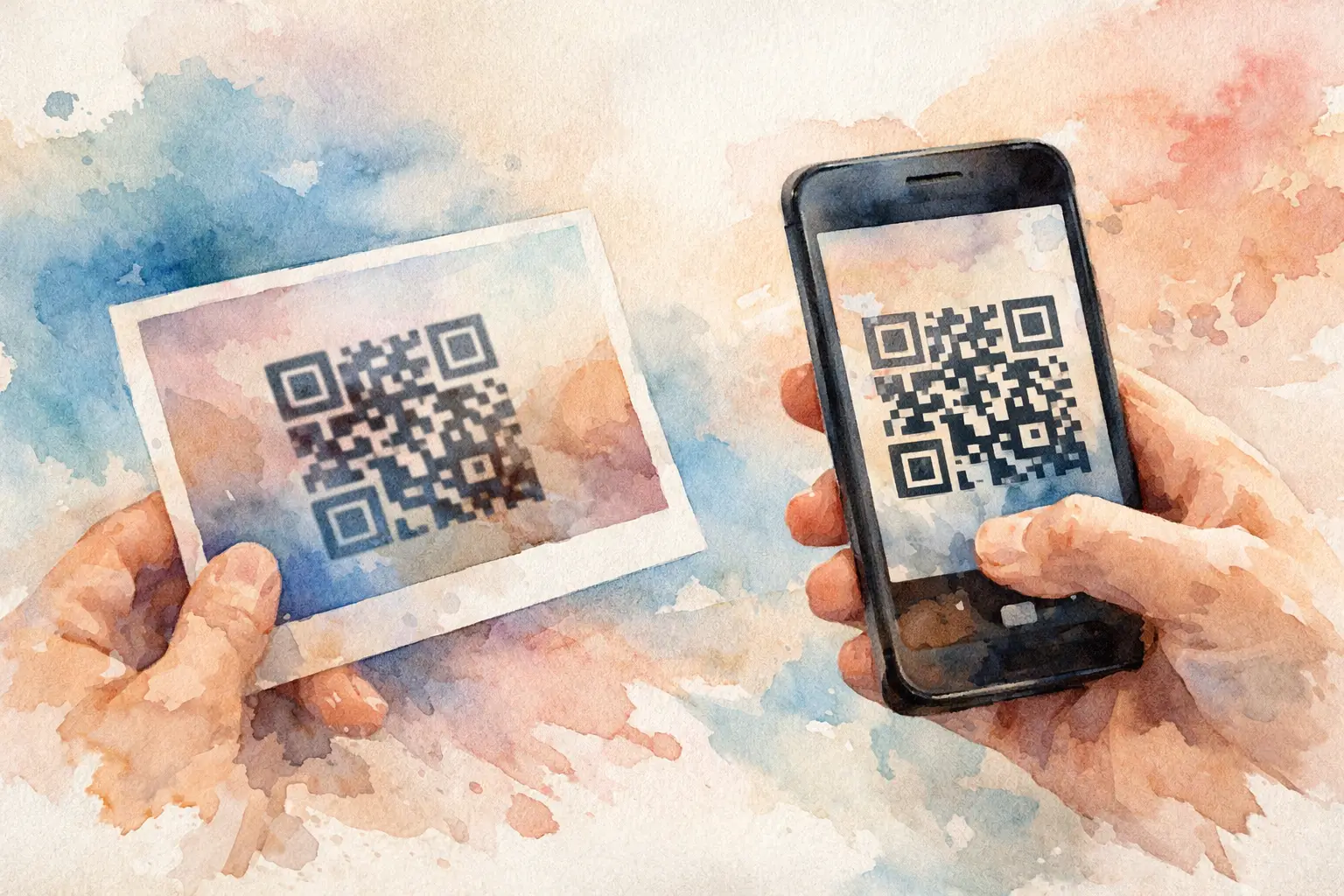
You took a screenshot, snapped a flyer, or got sent a photo with a QR code buried in it - and now you're stuck looking at the code instead of actually using it. Fair. QR codes are built to be scanned by a camera, so when the code already lives inside a photo, the obvious move suddenly isn't obvious.
If you're wondering how to use a QR code from a photo, the short answer is this: open the image in a tool that can detect QR codes directly from your photo library, screenshot, or desktop file. The exact steps depend on whether you're on iPhone, Android, Mac, or PC, but the good news is you usually don't need a second device.
How to use a QR code from a photo on your phone
Most people hit this problem in the same moment: the QR code is in your camera roll, a text thread, Instagram story, event invite, or email attachment. You can't point your camera at your own screen and expect magic. You need your phone to read the image itself.
On iPhone
If you're using an iPhone, start by opening the photo in the Photos app. On newer versions of iOS, Apple can often recognize QR codes inside images automatically. Press and hold on the QR code, or look for a small scan icon or live text-style prompt if it appears. If the code is recognized, your iPhone will show the link or action tied to it.
If that doesn't happen, take a screenshot of the photo and open that screenshot. Oddly enough, iPhones sometimes detect the code more reliably from a fresh screenshot than from an image sent through another app. You can also tap the share sheet and look for any option related to opening detected links.
If the code still isn't recognized, the image may be too blurry, too far away, or partially cropped. QR codes need clean edges and enough contrast to scan properly.
On Android
Android is a little more mixed because the experience depends on your device brand and software version. Many Android phones use Google Lens, which is the easiest fix here. Open the image in Google Photos or your gallery, then tap the Lens icon. Google Lens will scan the photo and, if it finds a QR code, show the linked content right away.
Samsung phones and other Android devices may have a similar built-in option in the gallery app. Sometimes it's labeled as Scan QR code, Bixby Vision, Lens, or just a visual search icon. The name changes. The goal doesn't.
If nothing appears, try zooming out before scanning. That sounds backward, but QR readers often work better when they can see the full code with a bit of margin around it instead of an over-zoomed crop.
How to use a QR code from a photo on desktop
Sometimes the QR code isn't on your phone at all. It's sitting in a downloaded image, a PDF, a presentation slide, or an event asset on your laptop. In that case, you have a few clean options.
On Mac
A Mac may detect QR-based links in certain apps, but it isn't always consistent across file types. The simplest move is to open the image clearly and use your iPhone's camera if you have one nearby. If you want to do it directly on your Mac, you typically need built-in visual detection through the app you're using or a QR-reading tool that can scan image files.
If the code came in a PDF or design file, export or screenshot just the QR section first. A clean image file is easier to read than a cluttered full-page document.
On Windows PC
Windows doesn't always offer a native, obvious QR-from-image workflow. If you have the image on your PC, opening it on-screen and scanning it with your phone is often the fastest route. If you need to decode it on the computer itself, the same rule applies: use software that can analyze image files rather than the webcam alone.
The main thing to avoid is wasting time trying to scan the code with your laptop camera while the same image is on that same laptop. That's the digital version of chasing your own tail.
Why a QR code from a photo sometimes won't work
This is where people assume the code is broken, when really the image is the problem. A QR code can be perfectly valid and still fail if the photo quality gets in the way.
Low resolution is the usual culprit. If someone sends a compressed screenshot through a social app, the sharp square pattern can get muddy fast. QR scanners need those little blocks to stay distinct.
Bad cropping is another issue. If the code is too tight against the edge of the image, some scanners won't pick it up. Most QR readers like a bit of quiet space around the code.
Then there's lighting and styling. A heavily filtered photo, glare on printed paper, dark mode inversion, or a code placed over a busy background can all reduce readability. A stylish event sign is great. A stylish event sign nobody can scan is less cute.
How to make a photo QR code easier to scan
If you have control over the image, small fixes can make a big difference. Start by recropping the photo so the full QR code is visible with some empty space around it. Keep it straight, not tilted. If the image is dark, brighten it slightly. If it's fuzzy, go back to the original file if possible instead of a screenshot of a screenshot.
It also helps to remove extra clutter. If the QR code is part of a flyer, poster, or invitation, isolate just the code area. Your scanner doesn't need the whole design. It needs the code to be crisp and centered.
And if you're the one creating event materials, test the code in the exact way guests will use it. A code that scans beautifully from a high-res design mockup may be much less reliable after it's posted to social, added to a slideshow, or printed too small on signage.
When this matters most at events
This is one of those tiny friction points that can quietly kill participation. A guest sees a QR code in an event announcement, someone shares the code in the group chat, or the host reposts it to stories. Everyone means to join. Then the code lives inside a photo, nobody knows how to use it, and the moment passes.
That matters even more when the QR code is the front door to the shared experience - like joining a group photo album, uploading live event shots, or getting access to the gallery later. Every extra second of confusion loses people.
That's why event QR flows need to feel obvious, fast, and mobile-native. If guests are already juggling drinks, conversations, outfits, and low battery, the joining process can't ask for patience. It needs to work right from the image they already have.
In that kind of setup, a platform like Revel works because the QR code isn't just a technical shortcut. It's the on-ramp to the whole memory-making part. Guests scan, join instantly, and start contributing without turning it into homework. More photos. More angles. Less chasing people afterward.
A few real-world situations where it depends
If the QR code is in a social media story, your phone may not let you long-press it cleanly. A screenshot usually fixes that. If it's inside a printed photo you took quickly from across the room, resolution may be too low, so walking closer and retaking the picture is smarter than forcing the scan.
If the QR code opens a menu, ticket, RSVP page, or photo album, the destination also matters. Some codes trigger apps, payment actions, Wi-Fi login, or contact cards. So if the image scans but nothing useful happens, the issue may be with the destination format rather than the code itself.
And yes, sometimes using a second device really is the easiest answer. If the code is on your laptop and your phone camera is ready, don't overcomplicate it.
The easiest way to think about it
A QR code from a photo only needs one thing: a device or app that can read the code from the image file itself, not just from a live camera view. Once you know that, the whole problem gets simpler.
So the next time a QR code shows up in a screenshot, shared pic, or event graphic, don't get stuck trying to scan your own screen like it's 2012. Open the image in a tool that can read it, give the code enough clarity to work, and move on to the good part - joining the moment instead of troubleshooting it.

A writer interested in connection, memory, and the everyday moments that matter more than we realize.
Tags: Cam QR , QR code camera , QR code for photos , QR photo sharing , QR Tags