Can You Use a QR Code From a Picture?
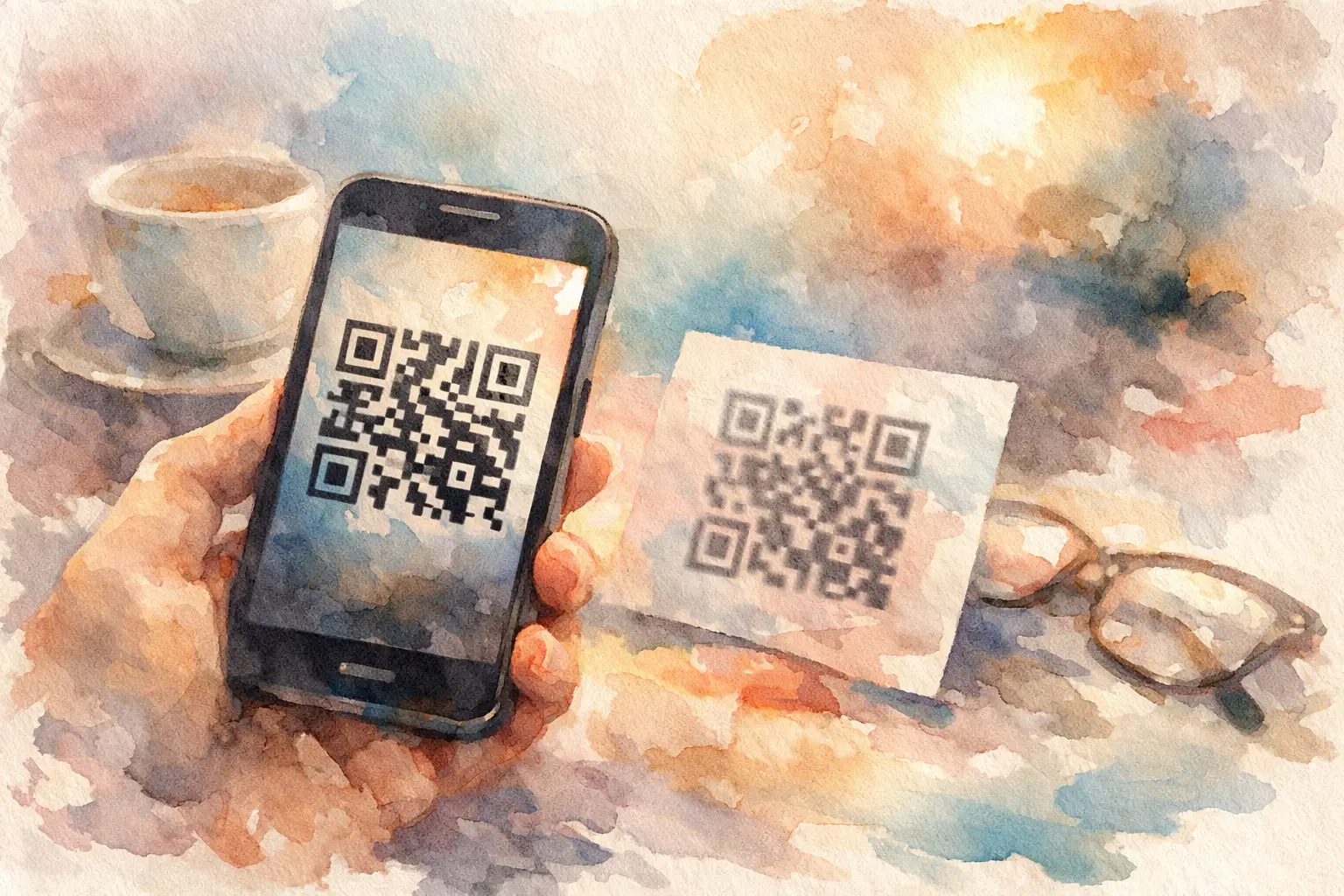
Someone drops a QR code into the group chat, posts it on Instagram, or screenshots it from an event page, and the same question comes up fast: can you use a qr code from a picture? Usually, yes. If the image is clear enough for your phone to read, a QR code can still work perfectly from a screenshot, saved photo, or printed image.
That’s the short answer. The more useful answer is that it depends on how the QR code is being used, how clean the image is, and what your phone or camera app can actually detect.
Can you use a QR code from a picture instead of scanning it live?
Most of the time, absolutely. A QR code is just visual data. Your phone doesn’t care whether it’s looking at the code on a poster, a laptop screen, a wedding sign, or a photo in your camera roll. It only cares whether the pattern is sharp enough to decode.
That’s why screenshots often work. So do photos taken from a flyer, invitation, presentation slide, or event table sign. If the code has enough contrast and the image hasn’t been cropped too tightly or blurred, your device can usually recognize it.
Where people get tripped up is assuming every QR code image behaves the same way. Some phones scan directly from the Photos app. Some need you to long-press the code. Some need a built-in code detector through Google Lens or Live Text. And some third-party camera apps are weirdly bad at it.
When a QR code from a picture works well
The easiest cases are clean digital images. Think screenshots, PNGs, high-quality JPEGs, and graphics pulled straight from a website or event page. Because the code hasn’t been distorted by glare, distance, or motion blur, your phone gets a much cleaner read.
Printed materials can work too, even when you take a photo first and scan later. A QR code on a wedding welcome sign, conference badge, birthday invitation, or vacation itinerary can still scan from a picture if the original photo is in focus and well lit.
This is especially useful at events. Someone can snap the sign once, then open that image later instead of hunting down the display again. That tiny convenience matters more than people think. If joining a shared album takes two seconds instead of twenty, more guests actually do it.
When it stops working
The biggest problem is image quality. If the QR code is blurry, grainy, low-resolution, stretched, or partially cut off, your phone may not read it at all. QR codes have some built-in error correction, which is why they can survive a little damage, but there’s a limit.
Contrast matters too. A classic black-on-white code is easiest to scan. Once you get into pale backgrounds, metallic prints, heavy filters, or trendy design choices, scanning gets less reliable. Cute can backfire.
Then there’s distance. If the code was photographed from across a room and takes up only a tiny part of the image, it may not contain enough detail to decode. Cropping in helps sometimes, but if the original image is too soft, cropping just gives you a bigger blurry square.
Some QR codes also expire or lead to content that has changed. In that case, the image isn’t the problem. The code itself may no longer be active, or the destination might have been turned off.
How to scan a QR code from a saved photo
On most newer iPhones, open the photo and press on the QR code or let the phone detect it automatically. If the image is clear, you’ll usually see a prompt to open the link. On Android, this often works through Google Photos or Google Lens. Open the image, tap Lens, and the phone should identify the code.
If that doesn’t happen right away, try a cleaner version of the image. Zooming in can help a little, but only if the original resolution is decent. If the code looks fuzzy before you even try scanning it, your phone is probably struggling for the same reason you are.
A quick workaround is to display the image on another screen and scan it with your camera. That sounds low-tech because it is, but it often works. Send the photo to a laptop, tablet, or another phone, then scan it normally.
Can you use a QR code from a screenshot?
Yes, and screenshots are often the best-case scenario.
A screenshot usually preserves the QR code exactly as it appeared on screen, without blur, glare, shadows, or perspective issues. If you screenshot a code from a text, email, website, or social post, there’s a strong chance your phone can read it directly from your photo library.
The catch is cropping. People love to screenshot fast and trim later. If any corner of the QR code gets clipped, or if the surrounding quiet space is cut too tight, readability can drop. QR codes need a little breathing room around the edges.
So if you’re saving a QR code for later, keep the full image intact. Resist the urge to crop it into a tiny aesthetic square.
Why event QR codes need to be easy from every angle
At events, QR codes are doing more than opening a menu. They’re the front door. If the code is supposed to get guests into a shared gallery, digital disposable camera, or private album, any friction means fewer people join.
That’s why image-based scanning matters. Guests might not scan the sign in the moment. They may snap a photo of it during cocktail hour and open it later from their camera roll. Or someone may forward the code in a group text after the party has already started. The experience still needs to work.
This is where good event design beats clever event design. A QR code should be large, high contrast, and easy to recognize from a saved image, not just from a perfectly aimed live scan. If you want more participation, make the entry point ridiculously forgiving.
For shared photo collection, that difference is huge. The more ways guests can join without friction, the more likely you are to end up with the real stuff - blurry dance floor chaos, table candids, disposable-camera energy, the moments the host never sees firsthand.
Common reasons your phone won’t read it
If a QR code from a picture isn’t working, it’s usually one of a few things.
The image may be too low quality. The code may be too small inside the photo. The design may have poor contrast. Your phone may not support direct QR detection inside saved images without using a separate tool like Lens. Or the QR destination may simply be broken.
There’s also the occasional issue of over-designed codes. Branded QR graphics can look great on a mood board and scan terribly in real life. Logos in the middle, unusual colors, decorative backgrounds, and custom shapes all raise the risk. A little customization is fine. Too much and you’re asking your guests to decode modern art.
How to make sure a QR code works from a picture
If you’re the one creating or sharing the code, test it the way real people will use it. Don’t just scan it once from your desktop and call it done. Screenshot it. Text it to yourself. Photograph it from a printed sign. Open it from your camera roll. Try it on both iPhone and Android if you can.
Keep the code large and sharp. Use strong contrast. Leave white space around it. Export it at high resolution. If it’s going on event signage, avoid glossy finishes that add glare and avoid placing it where people can only see it from ten feet away.
If the QR code is part of a group photo-sharing flow, simplicity wins every time. Guests should be able to join from the sign, from a screenshot, from a texted image, or from a photo someone else took of the code. The whole point is fewer steps, not more.
That’s one reason event tools like Revel lean so hard into QR-first participation. When the code works in the messy, real-life ways people actually use it - screenshotting it, saving it, forwarding it, scanning it later - you get more contributors and far fewer lost photos.
A good QR code doesn’t just scan. It survives the group chat, the camera roll, and the chaos of the night. That’s the standard worth aiming for.

A writer interested in connection, memory, and the everyday moments that matter more than we realize.
Tags: QR code camera , QR photo sharing , QR code for photos , QR Tags