How to Capture QR Code From Screen
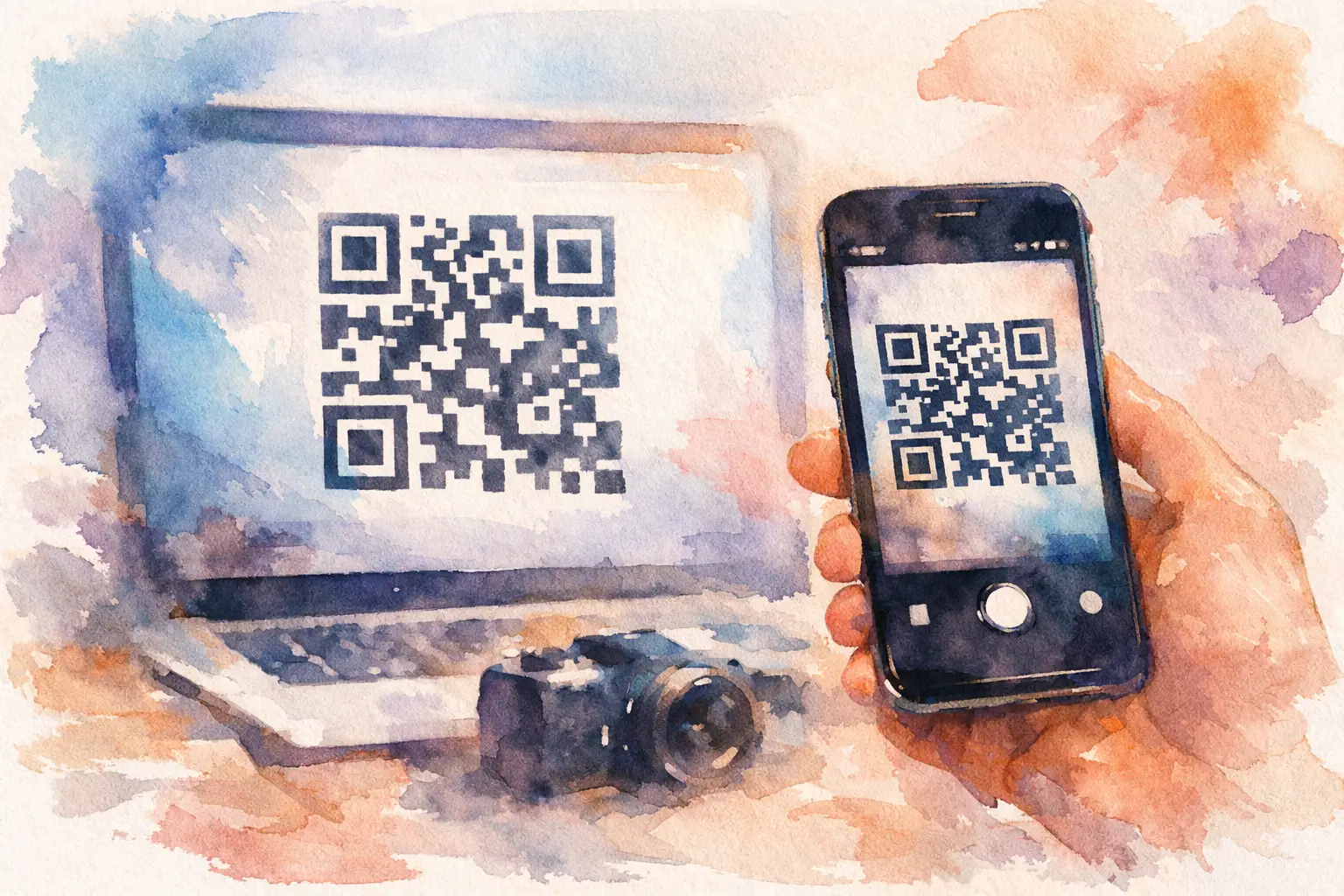
You’ve got a QR code sitting on your phone, laptop, or event display - and somehow that makes it harder to scan, not easier. If you need to capture qr code from screen, the real challenge is simple: a camera can’t easily scan the same screen it’s currently using. That’s why people end up taking awkward screenshots, texting themselves links, or asking someone nearby, “Wait, can you hold your phone still?”
The good news is this is usually fixable in seconds. Whether you’re joining a shared photo album at a wedding, checking into a conference, or pulling up a menu, there are a few reliable ways to capture a QR code from a screen without turning it into a whole production.
The easiest ways to capture QR code from screen
Most of the time, you’re dealing with one of two situations. Either the QR code is on the same device you want to use, or it’s on another screen nearby. The fastest method depends on which one you’re in.
If the code is on a different device, just open your camera and scan it normally. That’s the cleanest option. No extra apps, no weird workarounds, no cropping a screenshot three times until it finally works.
If the code is on the same device, use a screenshot and let your phone or computer detect the code from the image. Most modern devices can do this natively now, which is great because nobody wants to download a random scanner app for a one-time task.
How to scan a QR code already on your phone screen
This is where people usually get stuck. You can’t point your camera at your own display, so the move is to save the QR code as an image first.
On iPhone
Take a screenshot of the QR code. Open the screenshot in Photos, then press and hold on the QR code or look for the detected link icon if your iPhone recognizes it automatically. In many cases, iOS will surface the link, event page, or join prompt without any extra steps.
If that doesn’t work right away, try cropping the screenshot so the QR code is more centered and larger in the frame. Busy backgrounds, tiny codes, or glare effects from dark mode graphics can make detection less reliable.
On Android
Take a screenshot, then open it in Google Photos or your phone’s gallery. Many Android devices include QR detection through Google Lens. Tap Lens or the scan option, and your phone should read the code from the image.
Android is a little more varied because different brands handle image recognition differently. On Pixel and many Samsung devices, it’s built in and quick. On older phones, you may need to open the image in Google Photos to trigger detection.
How to capture QR code from a laptop or desktop screen
If the QR code is on your computer and you want to open it on your phone, this part is easy. Just scan the computer screen with your phone camera. Increase the brightness a bit if needed, and avoid viewing angles that create glare.
If you want to open the QR code on the same computer instead, take a screenshot and use your built-in image tools or browser features to inspect it. Some browsers and apps recognize QR codes from images automatically, but not all do. That means the smoothest path is often to scan it with your phone anyway, especially if the code is meant to open a mobile-first page.
There’s also a practical reality here: some QR codes are designed with smartphones in mind. Event check-in pages, shared galleries, and camera experiences often work best on mobile because they rely on your camera, photos, or quick guest access. Even if you can decode the link on desktop, that may not be the best end experience.
Why some screen QR codes won’t scan right away
Not every failed scan means the code is broken. Usually, the issue is presentation.
A QR code on a screen can fail because it’s too small, too dim, cropped, blurred, or sitting on a low-contrast background. If the code is displayed inside a video, social story, or animated presentation, motion can also trip things up. Cameras want a steady, high-contrast square. Give them that, and scan success rates jump.
If you’re showing a QR code to a group at an event, this matters more than people think. A code tucked into the corner of a slide might look fine from the front row and be useless everywhere else. Bigger is better. Cleaner is better. Static is better.
Best practices when showing a QR code on screen at events
This is where a lot of organizers accidentally create friction. The whole point of a QR code is fast participation. If guests have to squint, zoom, retry, or ask for help, you lose momentum.
Make the code large enough to scan from a few feet away. Keep strong contrast between the code and background. Don’t place it over patterned graphics, video, or brand-heavy layouts that make the square harder to read. If the code leads to something time-sensitive, like a shared event album, give people a clear instruction right next to it so they know what happens after they scan.
That last part matters. People are much more likely to participate when the payoff is obvious. “Scan to join the album” lands better than a lonely QR code floating in space.
For weddings, birthdays, and group trips, this is especially useful because people are already juggling drinks, conversations, and low phone battery. They need the easiest possible path. Scan. Join. Start capturing.
When a screenshot is better than a live scan
A live scan feels faster, but screenshots have advantages. If the QR code disappears quickly, lives inside an Instagram Story, or shows up during a presentation slide change, grabbing a screenshot gives you breathing room. You can zoom in, crop it, and scan it properly instead of racing a countdown.
Screenshots are also helpful when you want to share the code with someone else. Maybe a friend missed the wedding welcome sign, or a coworker wants the event gallery after the kickoff meeting. Sending the screenshot lets them scan it on another device or use image detection on their own phone.
There is one trade-off, though. A screenshot only works if the QR code itself is still valid. Some codes are dynamic or time-limited. If the destination changes or expires, the screenshot may scan perfectly and still lead nowhere useful.
What to do if the QR code still won’t work
If you’ve tried a normal scan and a screenshot scan and it’s still failing, check the basics before blaming your camera.
First, make sure the code is complete and not clipped by screen edges, browser bars, or app overlays. Second, increase brightness and reduce glare. Third, zoom with care. Too much digital zoom can blur the pattern and make it harder to read. Fourth, try another angle or device. Sometimes the issue is just one camera struggling with focus.
It’s also worth considering whether the QR code destination is the problem. A code can scan correctly but lead to a broken page, expired session, or app-specific flow that doesn’t open well on your device. If you’re organizing the experience, always test the code on both iPhone and Android before putting it in front of guests.
That’s one reason event-focused tools work better when they’re built around quick participation from the start. A good QR flow doesn’t just scan easily. It opens fast, works across devices, and gives people an obvious next step. Revel is a strong example of that approach - less friction, more contribution, better shared memories.
The real goal isn’t scanning - it’s momentum
Nobody wakes up excited to troubleshoot a QR code. They want to get into the album, check in at the event, or join the moment without breaking the vibe.
That’s the bigger idea here. When you capture a QR code from a screen easily, you remove one tiny piece of friction that can decide whether people participate or bounce. At a party, that means more candid photos. At a conference, it means more check-ins. At a brand activation, it means more engagement while attention is still hot.
So yes, the technical answer is simple: scan another screen directly, or use a screenshot when the code is on your own device. But the smarter move is to think one step ahead. Make the code visible. Make the destination mobile-friendly. Make the action feel worth it.
Because the best QR code experience doesn’t feel like a system at all. It just feels easy.

A writer interested in connection, memory, and the everyday moments that matter more than we realize.
Tags: QR code camera , QR code for photos , QR photo sharing , QR Tags