Wedding Guest Pictures: How to Avoid Duplicates and Blurry Shots
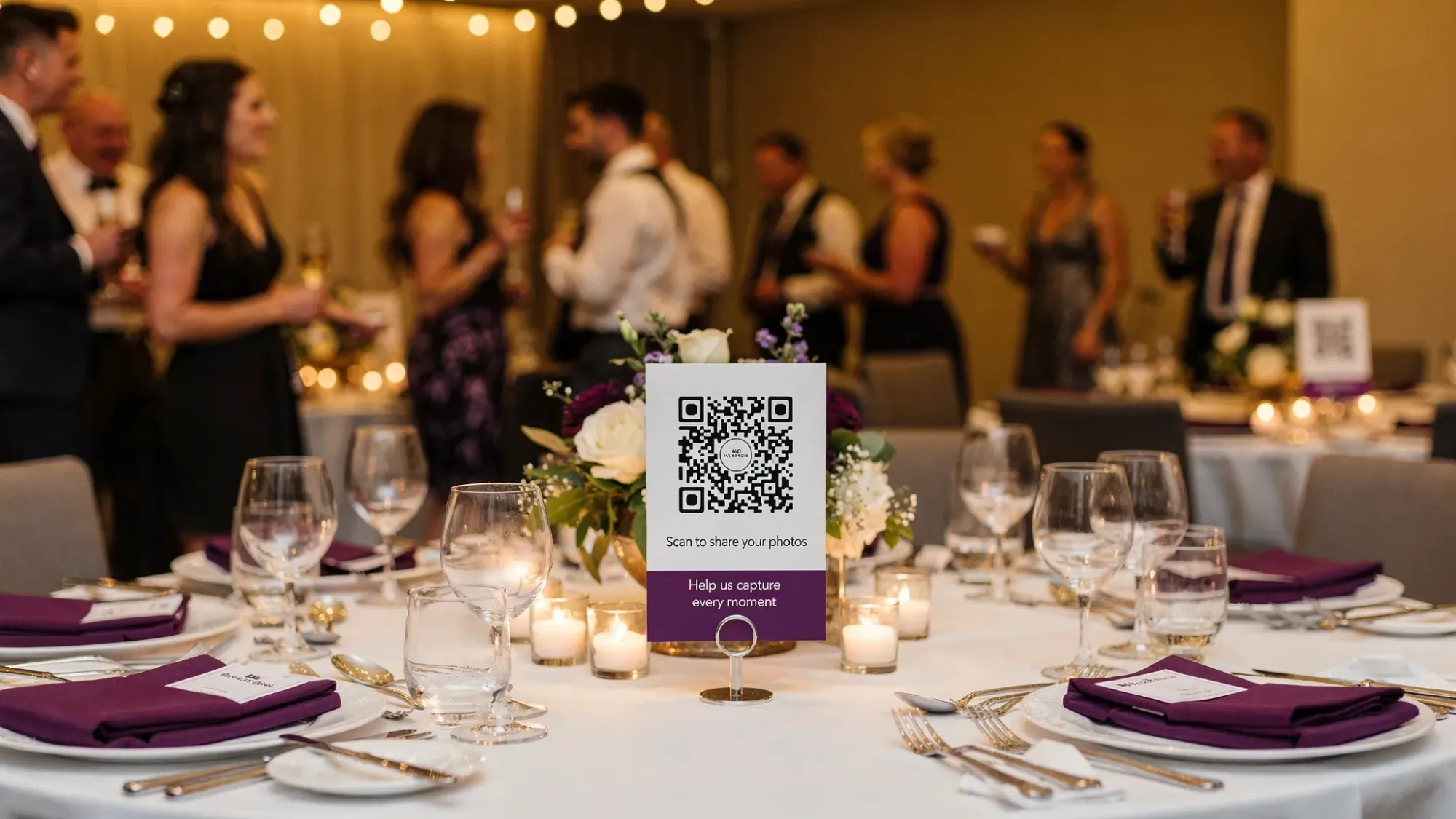
Wedding guest pictures are supposed to fill in the candid moments your photographer can’t be everywhere to catch. In reality, they often turn into two headaches: the same photos posted five different ways and a pile of blurry dance-floor shots you can’t use.
The fix is not “tell guests to take better photos.” It’s designing a simple system that (1) reduces duplication at the source and (2) nudges guests into conditions where phones actually produce sharp images.
Why duplicates and blur happen (and why weddings make it worse)
Duplicates are a workflow problem
At weddings, guests share the same image multiple times because there are too many “places” to put it:
- The group chat
- A shared iCloud/Google album
- AirDrop to the couple
- Instagram DMs
- The next-day “send me everything” text
When there isn’t one obvious destination, people hedge by sharing everywhere.
Blur is usually a light + motion problem
Most wedding blur comes from some mix of:
- Low light (receptions, dance floors, candlelit dinners)
- Subject motion (toasts, entrances, dancing)
- Camera shake (shooting one-handed, after a drink, while walking)
Photography fundamentals are consistent across devices: if the scene is dark, phones use slower shutter speeds, and motion becomes blur. (Nikon’s explainer on motion blur and shutter speed is a solid refresher.)
Part 1: How to avoid duplicate wedding guest pictures
Choose one collection path, then make it the default
The most reliable anti-duplicate move is simple: give guests exactly one place to contribute.
A “camera-first” flow works best because it prevents the common pattern of “I’ll upload later” (later rarely happens, and when it does, people also re-share elsewhere).
For example, Revel.cam creates a private event called a Moment. Guests scan a QR code or tap an NFC tag and go straight to the camera, then every photo uploads automatically into one gallery. On iPhone, it can launch as an App Clip (no app install), which removes the friction that makes people fall back to texting photos.
You can read Apple’s overview of App Clips if you want the technical context, but the practical takeaway is: guests join faster, so more people use the same flow.
Stop duplicates before they start with “single destination” language
Most signage focuses on “Share photos here.” To reduce duplicates, your copy should also say “Share them here only.” Give guests permission to not multi-post.
Here are three short options that work well on table tents and welcome signs:
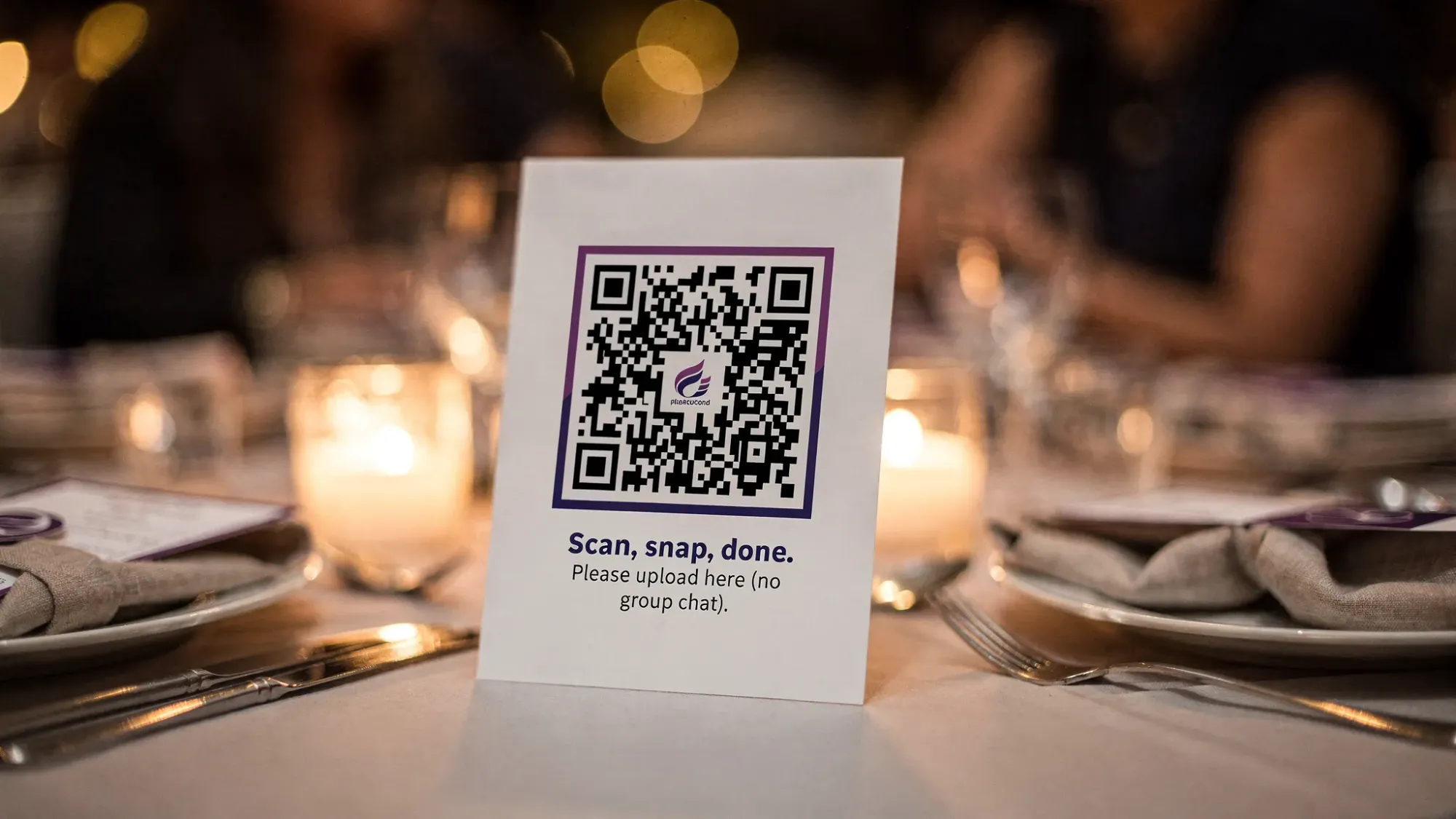
- “Take photos here so they all land in one place. No texting, no AirDrop needed.”
- “One shared wedding camera. Please upload here instead of the group chat.”
- “If you took it on this camera, it’s already shared. No need to send it again.”
Use photo limits to reduce “spray and pray” repeats
Duplicate galleries aren’t only repeats across platforms, they’re also repeats inside the same gallery: 12 nearly identical shots of the first kiss, 30 versions of the cake cut.
A simple guardrail is a per-guest photo limit. Revel.cam supports guest photo limits, which encourages people to slow down and choose moments that are actually different. Even if you don’t use Revel.cam, the principle holds: fewer shots per person typically means fewer near-duplicates.
Avoid “two systems at once” (the sneakiest duplication trigger)
The most common duplication trap looks like this:
- You set up a shared album, and also
- Someone starts a group chat, and also
- A few guests AirDrop highlights to you
No matter what tool you pick, decide what the default is and stick to it.
If you must keep a group chat (for logistics), add one line:
“Use the chat for updates, and use the QR camera for photos.”
Assign “coverage zones” so guests don’t all shoot the same thing
You don’t need a complex shot list. Just prevent everyone from clustering on the same moments.
Try assigning informal zones to a few social guests:
- Cocktail hour candids
- Table photos during dinner
- Dance floor (first 30 minutes)
- Afterparty or late-night snacks
This reduces duplicates and increases story coverage.
| Duplicate problem | Why it happens | What to do instead |
|---|---|---|
| Same photo shared in group chat and album | Guests don’t know the “official” destination | Pick one destination and explicitly say “upload here instead of texting” |
| 20 versions of the same moment | Everyone shoots the obvious highlight | Assign a few coverage zones (cocktail hour, tables, dance floor) |
| Guests upload later, then re-share elsewhere | Upload is a separate task | Use a camera-first, automatic upload flow (QR to camera) |
| Multiple guests re-upload the photographer’s sneak peeks | People love reposting | Ask guests to avoid re-uploading pro photos; keep the guest gallery for guest shots |
Part 2: How to get sharper wedding guest pictures (less blur)
Fix the environment first: give phones more light
If you want fewer blurry images, the best “setting” is not on the phone, it’s in the room.
Small changes that noticeably improve guest photos:
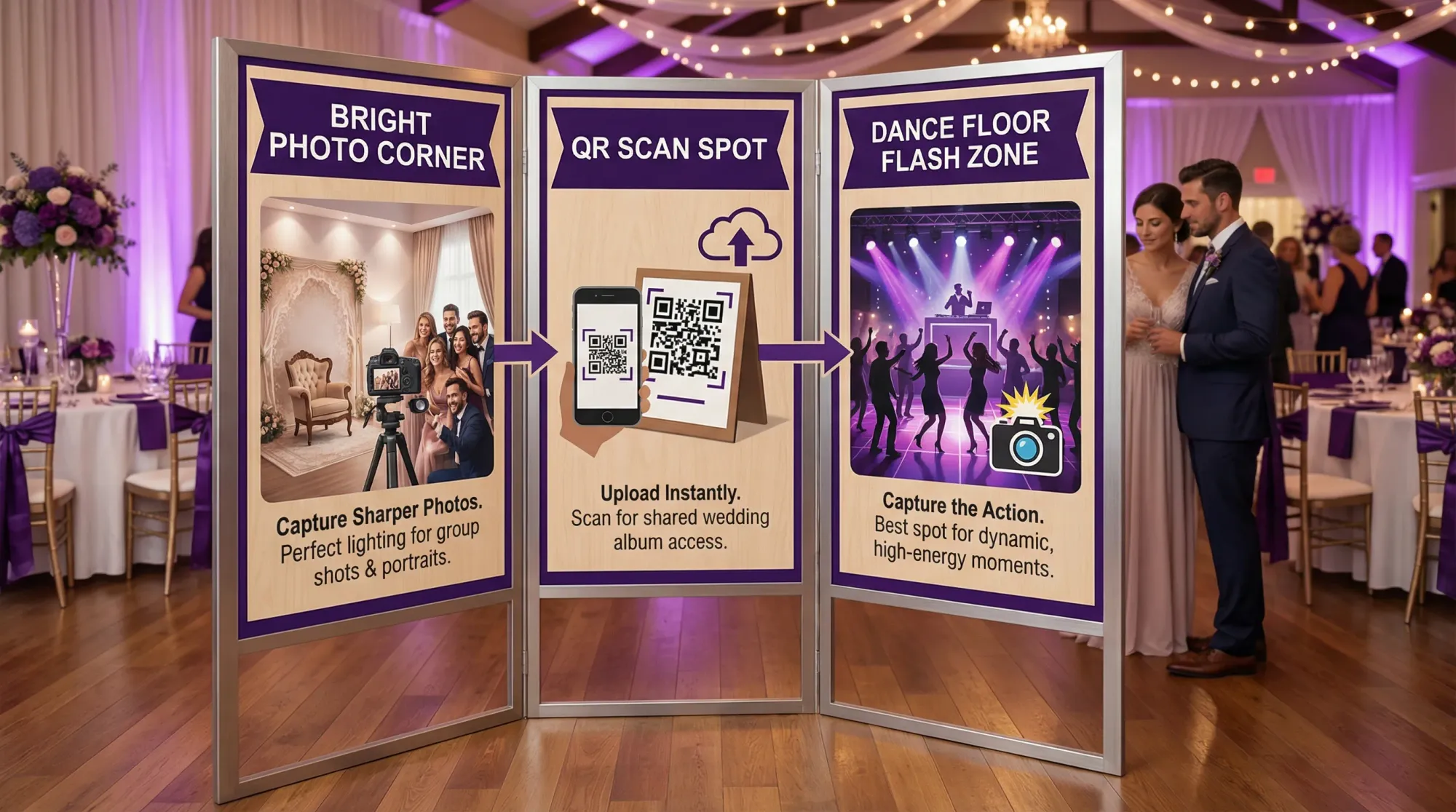
- Keep at least one area intentionally well-lit (a “photo corner” near the bar or guestbook)
- Avoid placing the QR sign in the darkest part of the room (guests will shoot right where they scanned)
- If you control reception lighting, don’t go fully dark until later in the night
Give guests a 5-second technique that works on any phone
Most people won’t read long instructions. One short tip will.
Use this universal prompt near your QR code:
“For sharp pics: wipe your lens, hold still for 1 second after you tap.”
That solves two huge issues:
- Smudged lenses (common at weddings because of makeup, sunscreen, pockets)
- Motion during capture (people tap and immediately move)
Encourage “step closer” instead of zoom
Digital zoom increases blur and noise, especially in low light. A better cue is:
“Move closer instead of zooming.”
It’s simple, and it improves sharpness more than most settings.
Use flash intentionally on the dance floor
Guests often avoid flash because it feels “uncool,” but it’s the fastest way to reduce blur in dark reception spaces.
If you want crisper guest photos late at night, normalize flash with your signage language:
“Dance floor tip: flash on gets the sharp shots.”
This is also how you get that fun, disposable-camera vibe, but with more keepers.
Create a “pause point” for action moments
Blur spikes during:
- Grand entrances
- First dance
- Toasts
- Bouquet toss
Instead of trying to control everyone, add one tiny habit: a pause point.
For example, your MC can say:
“If you’re snapping a photo, take one step to the side, plant your feet, then shoot.”
It reduces collisions, improves steadiness, and keeps aisles clearer for your pro.
| Cause of blur | What it looks like | Fast fix guests will actually do |
|---|---|---|
| Low light at reception | Soft faces, smeared hands | Use flash, or move to a brighter area |
| Subject motion (dancing, cheering) | One person sharp, others streaked | Shoot during micro-pauses (end of a spin, after a hug) |
| Camera shake | Everything slightly doubled | Two hands on phone, elbows in, hold still 1 second |
| Dirty lens | Hazy glow, low contrast | Quick lens wipe on shirt hem |
| Heavy zoom | Grainy, mushy details | Step closer instead of zooming |
A simple day-of plan that reduces duplicates and blur
Place the QR where guests will take better photos
Even if your collection method is perfect, if the first place guests scan is dark and crowded, your early uploads will be dark and blurry.
Good placements that improve quality:
- Near the bar (usually brighter, guests linger)
- Near a neutral wall (clean backgrounds)
- Near the guestbook or card table (people naturally stop)
Keep the instructions to one sentence
The best-performing signage is not clever, it’s obvious.
Try:
“Scan to take wedding guest pictures and they’ll upload automatically. Please don’t text duplicates.”
Use a short “permission” announcement
Many guests hesitate because they don’t want to be annoying with photos. A 15-second announcement gives them social permission.
A strong script (DJ, planner, or a friend can deliver it):
“Quick note: we have one shared wedding camera tonight. Scan the QR, take photos there, and they’ll upload automatically. If you used the QR camera, no need to text them later.”
After the wedding: curate without chaos
Even with a great system, you’ll still want light cleanup.
A good workflow looks like:
- Review and remove obvious misfires (accidental pockets, floor shots)
- Hide anything you don’t want shared broadly
- Share the final gallery when you’re ready
Revel.cam supports host review and moderation and lets you control when the Moment ends and when the gallery is revealed, which is useful if you want a clean handoff from “capture mode” to “share mode.”
If you want fewer duplicates, the tool matters
You can reduce duplicates and blur with any approach, but the easiest path is a capture flow that matches real guest behavior: fast, no accounts, no “upload later.”
If you want to make wedding guest pictures effortless to collect, Revel.cam is built for exactly that: create a Moment, share a QR code (or NFC tag/link), let guests snap and upload instantly, then review and reveal the gallery when the night is over. You can start at Revel.cam.
A writer interested in connection, memory, and the everyday moments that matter more than we realize.
Tags: DYI wedding photography , Wedding photography , Wedding photos , Wedding photo sharing