Revel Sign In: Who Needs Access and When
People search “revel sign in” for two very different reasons:
- They are hosting an event and need to create or manage a Moment.
- They are a guest, see a QR code, and assume they need an account.
Revel.cam is designed to remove that second problem. Guests typically do not sign in at all. Hosts, on the other hand, usually do, because they’re the ones setting the rules and controlling when the gallery is revealed.
This guide breaks down who actually needs access, when they need it, and how to avoid sharing the wrong credentials when you’re juggling a wedding day, a brand activation, or a corporate conference.
Revel sign in vs guest entry: what’s the difference?
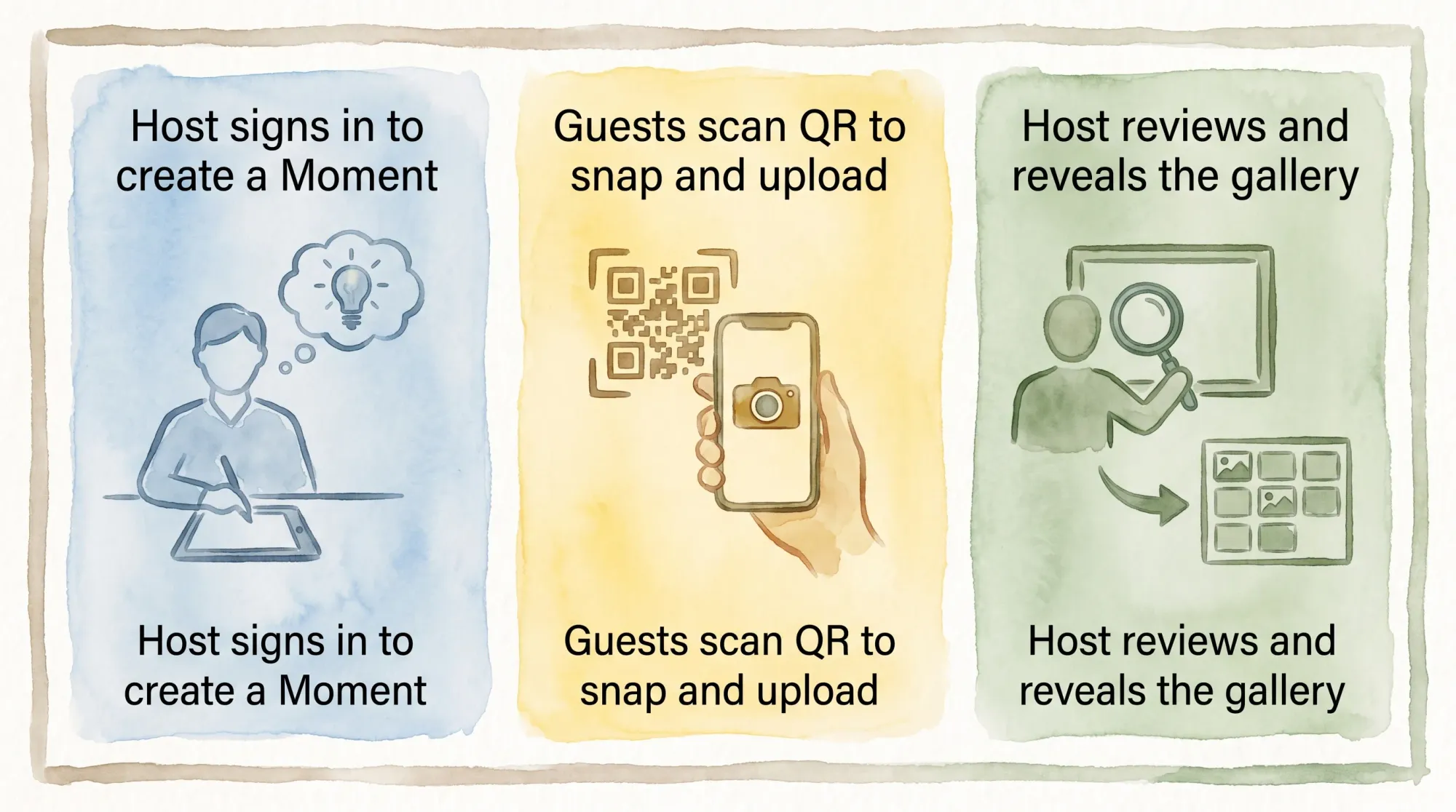
The simplest way to think about Revel.cam is that there are two “lanes”:
- Host lane (sign in required): Create a Moment, set limits, review/moderate, and decide when the gallery is shared.
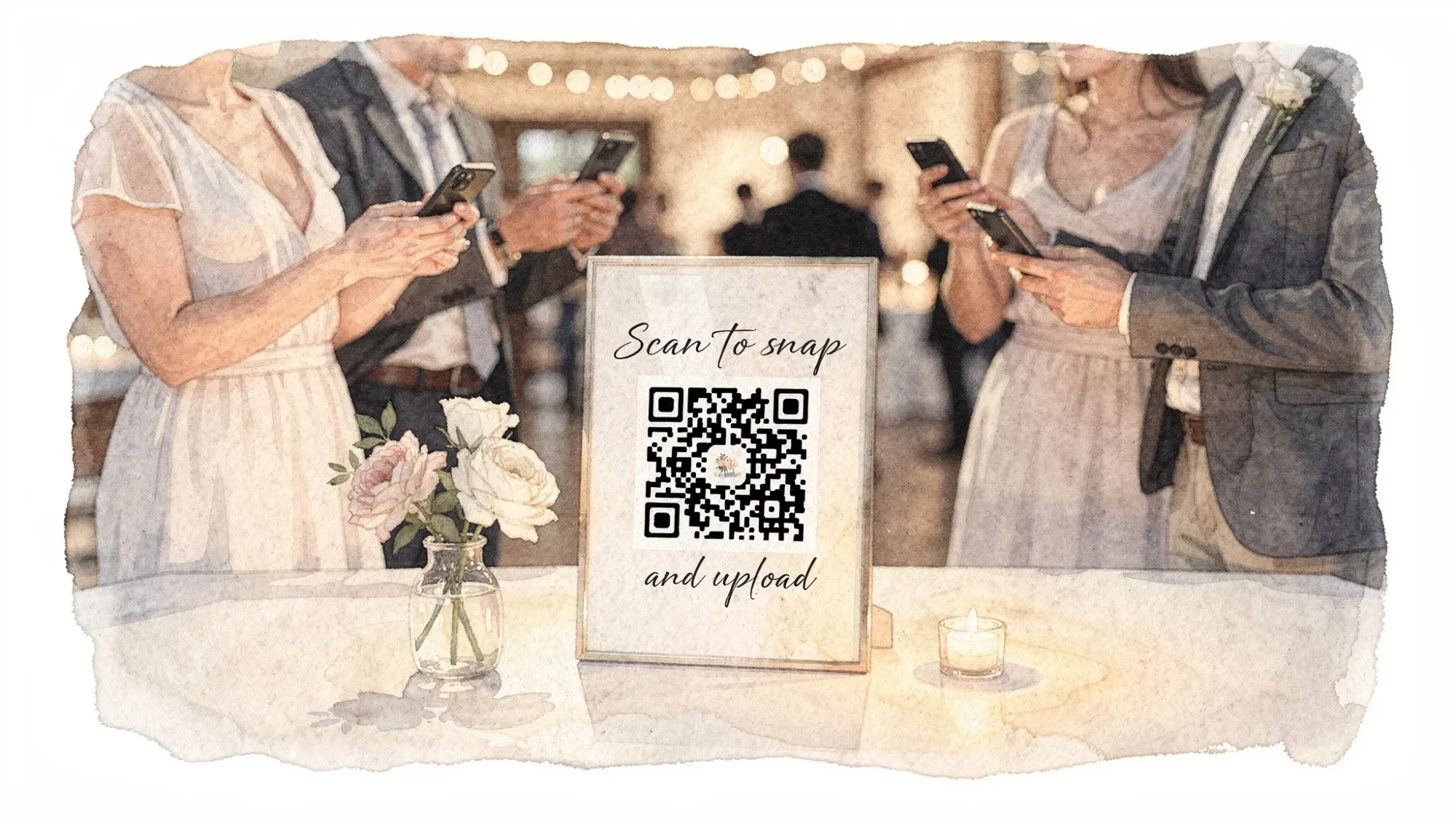
- Guest lane (no sign in): Scan a QR code (or tap an NFC tag), open the camera experience, take photos, and upload automatically.
On iPhone, Revel.cam can open as an App Clip, which is specifically meant to help people do something quickly without installing an app or creating an account.
If your goal is higher participation, this distinction matters. Every extra step, especially creating accounts and passwords, reduces the number of guests who actually contribute.
Who needs access (and what “access” really means)
In Revel.cam, “access” is less about who can view a public feed and more about who can control the Moment.
Here’s a practical breakdown by role.
| Role | Do they need to sign in? | Why | When they need it |
|---|---|---|---|
| Couple / party host | Yes (usually) | Create the Moment, set guest/photo limits, set end time, review shots, share the final gallery | Before the event, briefly during, and after |
| Wedding planner / coordinator | Not always | May help with setup, signage, and day-of execution, but does not always need to control the Moment | Only if they’re the designated operator |
| Corporate event owner (marketing/HR) | Yes (usually) | Set rules, keep gallery private, review for brand safety, share after the event | Before the event and after (sometimes during) |
| Venue staff | Usually no | Operational support (Wi‑Fi, placement, signage), not gallery ownership | Rarely |
| Guests / attendees | No | They contribute photos via QR/NFC, without accounts | During the event |
The one decision that prevents most sign-in confusion
Before you print anything, decide this:
Who is the single “Moment Operator”?
That person should be the one who can sign in, make changes if needed, and finalize the reveal. In weddings, it’s often the couple, a planner, or one trusted friend. In corporate events, it’s often the event marketer or comms lead.
Keeping one operator avoids:
- Last-minute password resets
- Multiple people trying to moderate in parallel
- Unclear ownership of what gets shared
(If your event team is large and you’re thinking about broader operational workflows, permissions, and systems, it can also help to look at how mid-market teams structure managed services and accountability, for example with AI & NetSuite consulting for mid-market operations as a model for “one owner, clear outcomes, fast iteration.”)
When you actually need to sign in (timeline-based)
Most hosts imagine they’ll be “in the app” all night. In practice, a great Revel.cam setup needs sign-in at only a few points.
Before the event (the only time you should plan to log in)
Sign in when you’re calm and have 10 minutes.
What to do in this window:
- Create your Moment.
- Set how many guests can join.
- Set how many photos each guest can take.
- Set the Moment end time.
- Decide whether you want the gallery revealed only after the Moment ends.
Best practice: do a quick dry run.
- Scan your QR code.
- Take one test photo.
- Confirm it appears in the Moment on the host side.
If you can do that successfully before the event, you remove almost all day-of risk.
During the event (optional, but useful)
Many events run perfectly without the host logging in at all during the live portion.
You might choose to sign in briefly if:
- You want to check that uploads are flowing.
- You plan to review and remove any unwanted images before sharing.
- You want to confirm the Moment end time is correct (especially for multi-part events like rehearsal dinner + wedding day).
The goal is not constant monitoring. The goal is a quick “heartbeat check,” then back to hosting.
After the event (when people are most excited)
This is when sign-in matters again.
Common post-event actions:
- Review the set of photos.
- Curate by removing anything you do not want included.
- Share the gallery when you’re ready.
For weddings and private events, many hosts prefer a next-day reveal so the couple is not distracted and guests get a fun “morning after” moment.
Guests: what to do if you’re searching “Revel sign in”
If you are a guest and you’re being asked to contribute photos, here’s the key point:
You usually do not need to sign in to Revel.cam to take and upload photos.
Instead:
- Scan the event QR code with your phone camera, or tap the NFC tag.
- The camera experience opens.
- Take photos.
- Photos upload automatically to the event’s Moment.
What if the page you opened asks for a login?
A guest should generally not be asked to create an account for a typical Revel.cam event flow.
If you see a login prompt, try these quick checks:
- Confirm you scanned the correct sign, not an old QR from a previous event.
- Look at the URL. For trust and safety, it should be on the official Revel.cam domain and use HTTPS.
- Ask the host or planner if there’s a backup join link.
Hosts: how to choose the right person to hold the login
Different events have different operational realities. Here are the most common patterns that work well.
Weddings
Recommended operator: someone who is not the couple.
A wedding day is busy, emotional, and time-boxed. If the couple is also responsible for sign-in, moderation, and reveal timing, the system may get ignored.
Good choices:
- Planner/coordinator
- Maid of honor/best man
- A trusted “Photo Captain” friend
If you do keep it with the couple, assign one person (not both) so decisions stay consistent.
Birthday parties, house parties, group trips
Recommended operator: the host.
These events are usually simple, and moderation needs are typically light. Sign in before the party, then again after.
Corporate events and conferences
Recommended operator: the person accountable for comms outcomes.
That usually means marketing, comms, or the internal event lead, not a rotating group of volunteers.
Corporate photo sharing often has extra constraints:
- Brand safety
- Privacy expectations
- Clear internal rules about what gets published
Choosing one accountable operator makes it easier to curate confidently.
How to prevent last-minute login problems (without overcomplicating it)
Most “sign in” issues are not technical problems. They are ownership problems.
Use a dedicated event email (when the stakes are high)
If you’re running a large conference or a brand activation, consider using an email address that is not tied to one person’s personal inbox.
This helps when:
- Your operator changes (handoff between team members)
- You need access after the event for reporting or sharing
Keep the QR code separate from the host account
A guest QR code is meant to be public in the room. Host sign-in details are not.
Operationally:
- Print the QR code widely.
- Keep sign-in credentials private.
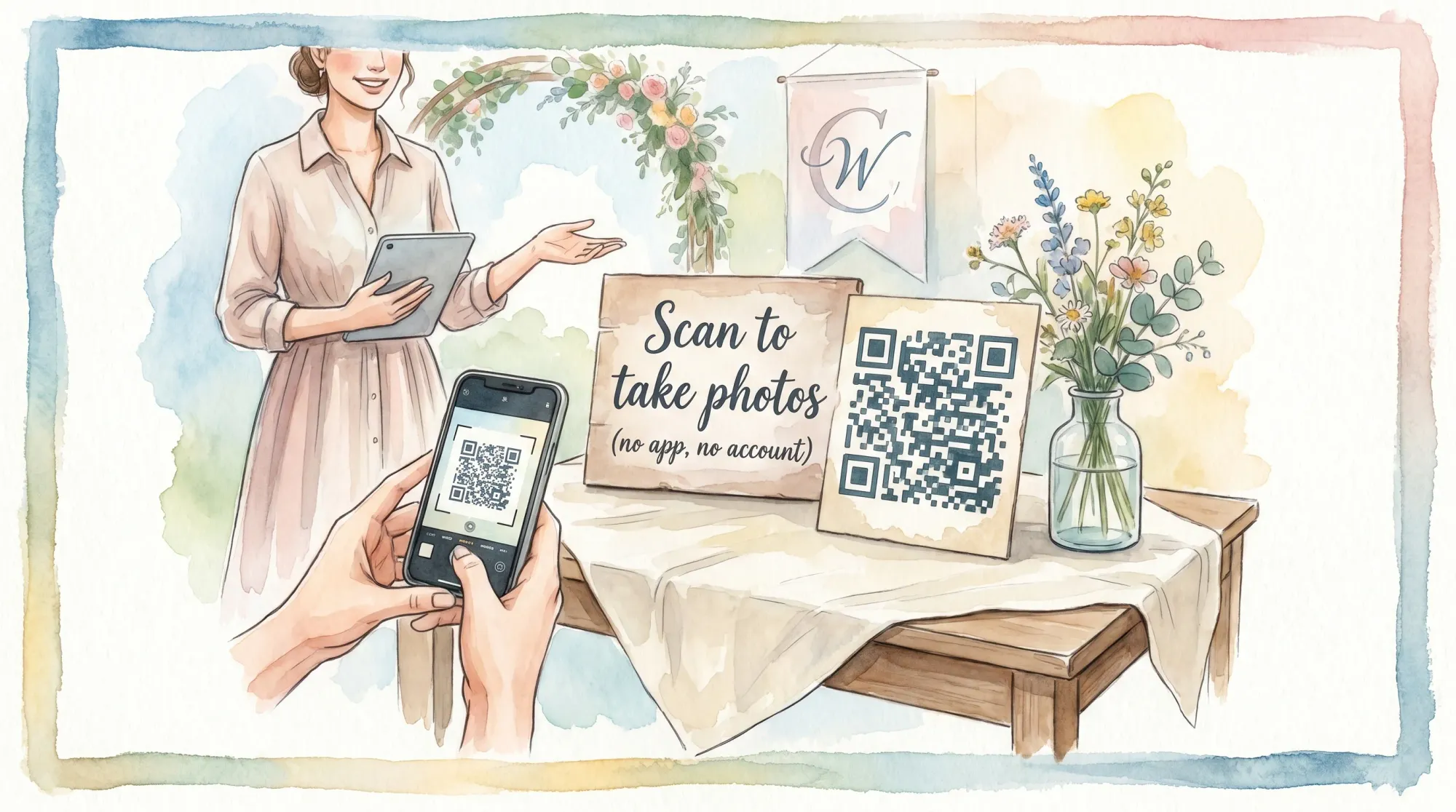
Put “no login required” on the sign
If you want more guest participation, the sign should remove doubt.
A single line helps:
“Scan to take photos (no app, no account).”
That one sentence can increase contributions because it answers the biggest fear: “Am I about to get stuck in a sign-up flow?”
Quick troubleshooting: access and entry issues
“The QR code scans, but nothing happens”
Common fixes:
- Increase brightness on the guest’s phone.
- Move the sign to better light (glare and shadows can break scanning).
- Provide a short backup link on the printed sign.
“It worked for iPhone, not for Android”
Ask the guest to:
- Try scanning with the native camera first.
- If that fails, try another built-in scanning method (some Android camera apps differ by manufacturer).
“Guests are worried about privacy”
The cleanest answer is to explain the structure:
- It’s an event-only Moment.
- Guests contribute to the event gallery.
- The host controls when the gallery is shared.
Privacy confidence increases participation.
Frequently Asked Questions
Do guests need a Revel sign in to upload photos? In most cases, no. Guests typically scan a QR code (or tap NFC) and take photos immediately without creating an account.
Who should sign in for a wedding, the couple or the planner? Either can work, but many couples choose a planner/coordinator or trusted friend as the operator so the couple stays present.
When should I sign in to Revel.cam as a host? Plan to sign in before the event to create the Moment and set limits, and after the event to review and share the gallery. During the event is optional.
What should I do if a guest says they’re being asked to log in? Confirm they scanned the correct QR code for the current Moment, and verify they’re on the official Revel.cam link. If needed, provide the correct join link again.
Is it better to let everyone manage the gallery? Operationally, it’s usually better to have one designated operator for consistency, fewer mistakes, and a smoother reveal.
Create a Moment with the right access from the start
If you want the simplest possible event photo workflow, set one operator, sign in once before the event, then let guests do what they already know how to do: scan and take photos.
To set up your next event, create a Moment on Revel.cam and share it via QR code, NFC tag, or a link so guests can join instantly with no app install and no accounts.

A writer interested in connection, memory, and the everyday moments that matter more than we realize.
Tags: Birthday celebrations , Corporate events , Wedding photo sharing