Corporate Photos: A Simple System to Collect Team Pics
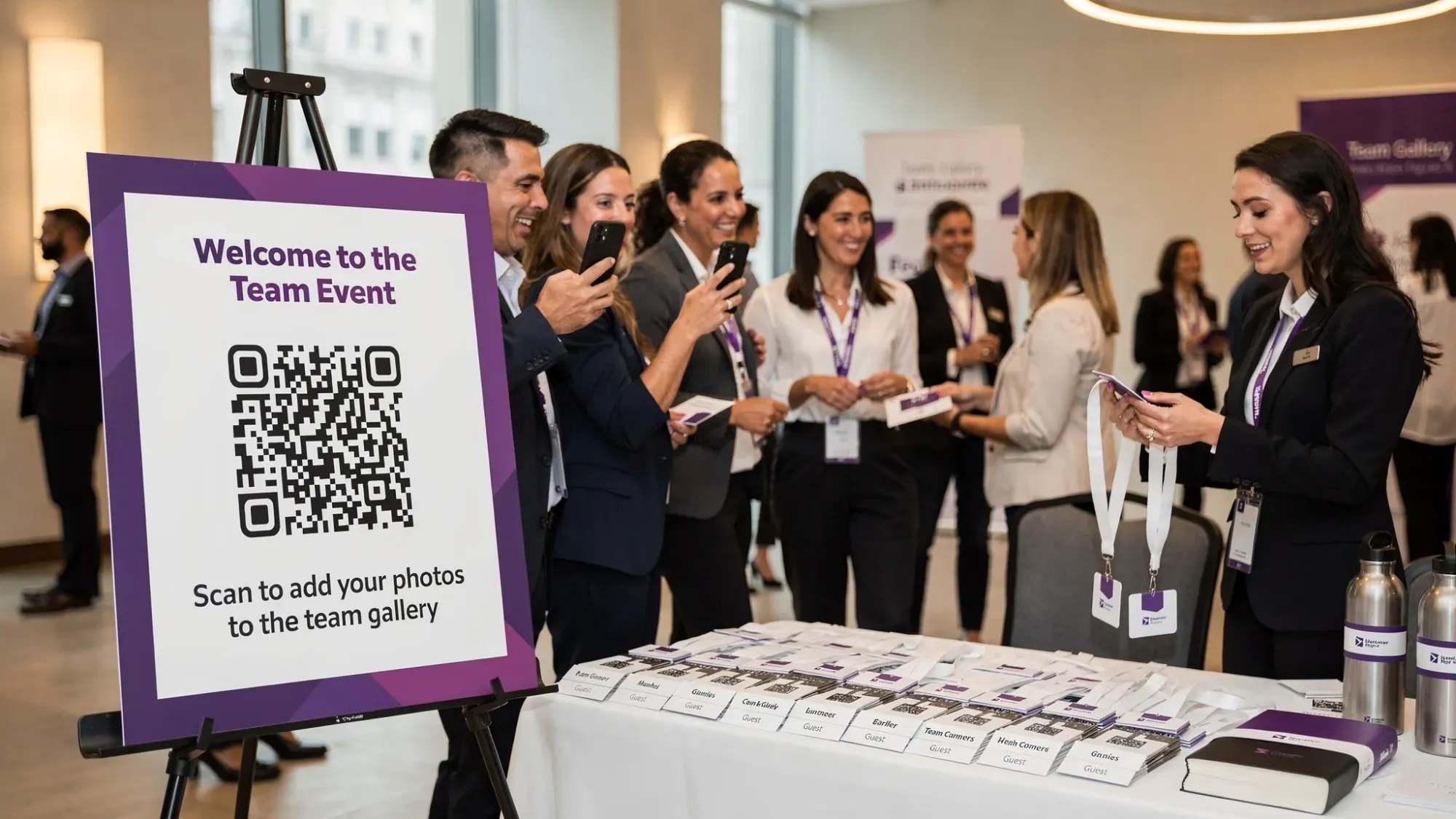
Corporate photos are one of the highest-leverage event outputs you can produce. They support internal culture (recaps, recognition, morale), employer branding (recruiting), and marketing (social posts, case studies, sales enablement). Yet most teams still rely on the same broken workflow: “Everyone take pics and send them to me later.”
The result is predictable: photos stuck on personal phones, scattered across Slack threads, duplicates everywhere, and key moments missing entirely.
Below is a simple, repeatable system to collect team pics at corporate events (offsites, conferences, holiday parties, trainings, field days, launches) without chasing people afterward.
Why corporate photo collection breaks (even when everyone has a great camera)
A modern phone camera is not the problem. The breakdown is operational:
- Friction: asking for logins, app installs, or shared-drive permissions loses contributors immediately.
- Delay: if sharing is “later,” it usually becomes “never.”
- Fragmentation: photos get split between texts, Airdrop, shared albums, and individual uploads.
- No guardrails: without limits or moderation, galleries become noisy, off-topic, or not brand-safe.
A better approach is to treat corporate photos like any other event system: one entry point, clear rules, and a defined finish line.
The simple system: one capture experience, one gallery, one reveal
Think of this as a lightweight “photo ops plan” you can reuse for every event.
Step 1: Define the job your corporate photos must do
Start by choosing the primary outcome. This affects what you collect, how you moderate, and who you share with.
Common outcomes:
- Internal recap: culture deck, intranet post, all-hands recap, leadership update.
- Employer brand: recruiting content, LinkedIn posts, careers page updates.
- Marketing proof: customer event highlights, partner moments, launch buzz.
- Team memory: a shared story of the day, candid moments leadership never sees.
Then set two boundaries before the event starts:
- Audience: internal-only vs. public-ready.
- Sensitivity: any areas where cameras should be discouraged (whiteboards, customer data, badges, minors, secure spaces).
If you need a simple sign-off rule: “Collect everything, share highlights.” That means you gather a full set, but you only publish a curated subset.
Step 2: Pick one collection method and commit to it
If you want consistent participation, you need one obvious path for guests.
Here’s how common methods compare for corporate photos:
| Method | What it’s good for | Where it fails | Best for |
|---|---|---|---|
| Slack/Teams thread | Fast, familiar | Compresses images, messy, hard to curate | Small internal meetups |
| Shared drive folder | Central storage | Permissions friction, uploads get skipped | Internal teams with managed accounts |
| Shared album (Apple/Google) | Easy for some groups | Platform mismatch, invites, account requirements | Smaller groups with similar devices |
| Event hashtag/social | Public reach | Not private, brand risk, not everyone posts | Public brand activations |
| QR-based event camera + automatic upload | Highest participation, single gallery, low friction | Requires basic signage and a quick announcement | Offsites, conferences, company parties |
For most corporate events, the QR-based approach wins because it works with how guests behave in real life: they will scan something in the moment, but they will not reliably “upload later.”
A practical corporate workflow (built for HR and marketing teams)
This workflow is designed to be owned by one person and executed in minutes.
Step 3: Create one event gallery with guardrails (limits + end time)
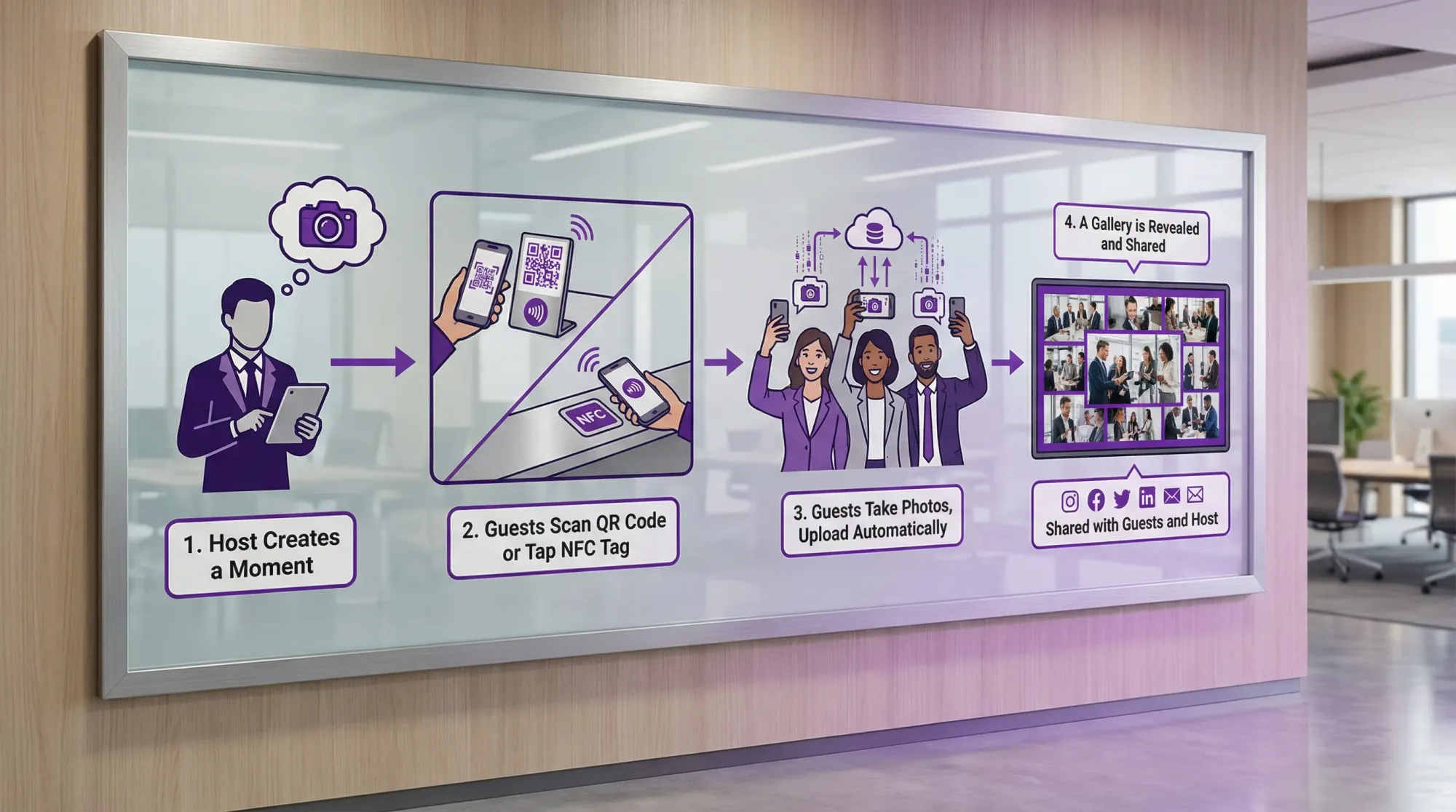
If you’re using Revel.cam, you create a Moment and choose:
- Event name
- How many guests can join
- How many photos each guest can take
- When the Moment ends
Guests join instantly by scanning a QR code, tapping an NFC tag, or using a link. On iPhone, it can open as an App Clip (no app download), per Apple’s App Clips experience guidelines (Apple Developer Documentation).
Why guardrails matter for corporate photos:
- Photo limits reduce spam and duplicates and push more intentional shots.
- An end time keeps the gallery clean and time-boxed (no late, off-topic uploads days later).
- Host moderation lets you remove unwanted images before sharing more broadly.
Here are practical starting settings you can copy:
| Corporate event type | Suggested photo limit per guest | Suggested end time | Notes |
|---|---|---|---|
| Team offsite (1 day) | 10 to 20 | End of dinner / end of day | Enough for candids + groups without flooding |
| Conference booth or brand activation | 3 to 8 | End of show day | Keeps uploads focused on booth moments |
| Company holiday party | 8 to 15 | 30 to 60 minutes after last call | Captures after-dinner moments, avoids next-day noise |
| Training / workshop | 5 to 10 | End of final session | Encourages key slides, group pics, breakouts |
| Multi-day retreat | 10 per day (separate Moments) | Each night | “One gallery per day” simplifies recap creation |
These are not hard rules. The point is to pick defaults that support your outcome.
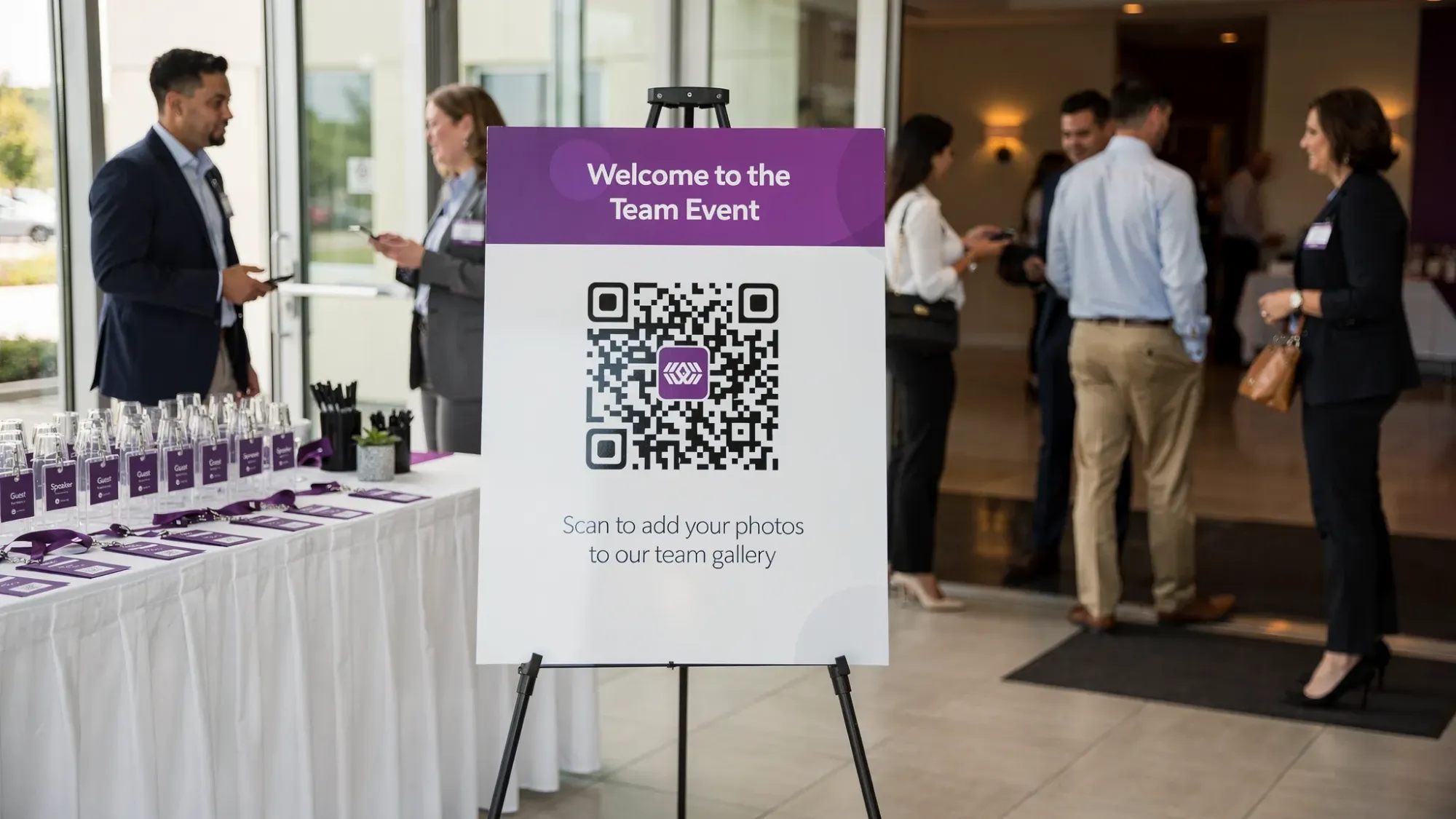
Step 4: Put the QR where behavior already happens
Corporate events have predictable traffic patterns. Place the QR code where people naturally pause.
High-performing placements:
- Check-in desk (first touchpoint)
- Badges and lanyard cards (always visible)
- Table tents (meals and breaks)
- Photo wall / step-and-repeat (where group shots happen)
- Opening slide deck (1 slide shown during housekeeping)
- Swag table signage (people stop and read)
Keep the instruction short. The best copy is one sentence.
Suggested sign copy (internal event):
- “Scan to add your photos to the team gallery. No app, no login.”
Suggested sign copy (public-facing brand activation):
- “Scan to snap and upload to the event gallery. Please avoid capturing private screens or attendee details.”
Step 5: Make one 15-second announcement (it changes everything)
Most “we tried a QR code” attempts fail because no one tells people what it is.
Use a single script in the first 5 minutes:
- “Quick note: we’re collecting everyone’s photos in one shared gallery today. Scan the QR on your table or badge, take photos through the camera, and they’ll upload automatically. No app or signup.”
If you want more participation, repeat the reminder once:
- right before dinner, or
- right before the afterparty, or
- right before the final session ends.
Step 6: Give guests prompts that produce usable corporate photos
If you only say “take photos,” you’ll mostly get random candids. Prompts create coverage.
Use 6 to 10 prompts that match your event. Examples:
- “Your table’s best group photo”
- “A behind-the-scenes setup moment”
- “A teammate you don’t work with every day”
- “The most ‘us’ moment of the day”
- “A proud win from this quarter (photo of people, not confidential slides)”
- “One photo that shows what this event felt like”
If you have a photo wall, add one prompt that forces a team grouping:
- “Take one photo at the wall with 3+ people from different teams.”
Step 7: Moderate and share with a simple two-layer output
To keep things brand-safe and useful, publish in two layers:
- Full internal gallery: accessible to attendees (more candid, more complete).
- Curated highlights: 15 to 40 images for leadership, recruiting, and marketing.
This is where Revel.cam’s host review and moderation fits naturally: you can remove unwanted photos before sharing beyond the host, and then reveal the gallery when the Moment ends.
A clean post-event share message (internal):
- “Thanks for contributing photos. The full gallery is ready: [link]. If you post publicly, please tag the company and avoid sharing images with screens or attendee info.”
A clean post-event share message (marketing-ready):
- “Highlights from the event are live: [link]. If you’re sharing externally, please use the approved captions/hashtags from the comms kit.”
Corporate photo best practices (privacy, consent, and brand safety)
Corporate events often include clients, partners, or sensitive work contexts. A few lightweight practices go a long way.
Use clear, plain-language expectations
Add one line near the QR code:
- “By uploading, you confirm you have permission to share and that photos don’t include confidential information.”
If your event includes customers or the public, align with your organization’s existing photo release process. (This varies by company and jurisdiction, so route to your legal or HR owner when needed.)
Avoid “screen-forward” photography zones
If you’re in a workshop environment, designate a “no photos” zone for:
- whiteboards with strategy
- laptops with dashboards
- attendee lists and badges
Then give people a better alternative, like a photo wall or a few intentionally staged areas with good lighting.
Make ownership operational
The fastest way to improve corporate photos is to assign a single owner:
- HR for internal culture events
- Marketing for brand activations
- Event ops for conferences
That owner’s job is not to take all the pictures. It’s to run the system: signage, reminders, and the post-event share.
A quick “day-of” checklist you can reuse
Use this as a simple run-of-show insert.
Before guests arrive:
- Print 3 to 8 QR signs (entrance, tables, photo wall, bar/coffee)
- Test scanning on iOS and Android
- Confirm Wi‑Fi details or ensure cellular works in the space
- Decide who can view the gallery after the event ends
During the event:
- Make the 15-second announcement
- Repeat one reminder at a natural moment (meal, break, closing)
- If participation is low, move one QR sign to where people are already taking photos
After the event:
- Review submissions
- Remove anything off-topic
- Share full gallery internally
- Export or select highlights for external channels
Frequently Asked Questions
What are “corporate photos” in this context? Corporate photos here means the informal, guest-generated photos from team members and attendees at events, not formal headshots or fully produced brand shoots.
Will this replace a professional event photographer? No. A professional photographer is still the best way to guarantee hero shots and consistent lighting. This system complements a pro by collecting the candid, behind-the-scenes moments a photographer cannot be everywhere to capture.
How do we get higher participation from employees? Reduce friction (no app, no login), place QR codes where people pause (check-in, tables, photo wall), and make a short announcement early. Participation usually follows clarity.
How do we keep the gallery brand-safe? Use host review and moderation, set a clear end time, and add simple expectations on signage (no confidential screens, no attendee info). For public events, align with your photo release process.
What if the venue Wi‑Fi is bad? QR-based collection can still work on cellular. If connectivity is unreliable, keep signage near windows or common signal areas, and avoid putting the QR only in back corners or basements.
Try a simpler way to collect corporate photos
If you’re planning an offsite, conference, holiday party, or brand activation and want one clean system to collect team pics without chasing people, create a Moment on Revel.cam. Guests can scan a QR code or tap an NFC tag to snap and upload instantly, with no signup or app install required, and you can review photos before sharing the final gallery.
A writer interested in connection, memory, and the everyday moments that matter more than we realize.
Tags: Corporate events , Corporate photo sharing , Photo sharing